
The desktop first run
The desktop app asks one thing before it creates anything: where to keep your library. A server or a browser skips this and goes straight to the profile question.
The library folder holds the database, every downloaded chapter, every cover and your own books. The app suggests a Fiction Reader folder in your Documents. You can use that or choose another folder.
Some folders are refused, and the app tells you why:
- A folder inside Dropbox, Google Drive, OneDrive, iCloud, Syncthing or a similar sync client. Sync clients copy files while the database is writing them, which eventually corrupts it.
- A network drive.
- On Windows, a path longer than 100 characters.
If you want the library on more than one computer, keep it in an ordinary folder and turn on sync afterwards.
To use a server you already run, open Settings → Desktop connection once the app has started. It asks for the server's address, tests it, and restarts. Your local library stays where it is.
Profiles
After that, the app asks who is reading. Type a name. That's all there is to signing in.
A profile is only a name. There are no passwords, because Fiction Reader is meant for a machine you own on a network you trust.
Each profile has its own reading positions, unread counts, highlights, notes, tags, collections and display settings. The stories and downloaded chapters are shared, so two people following the same story only download it once.
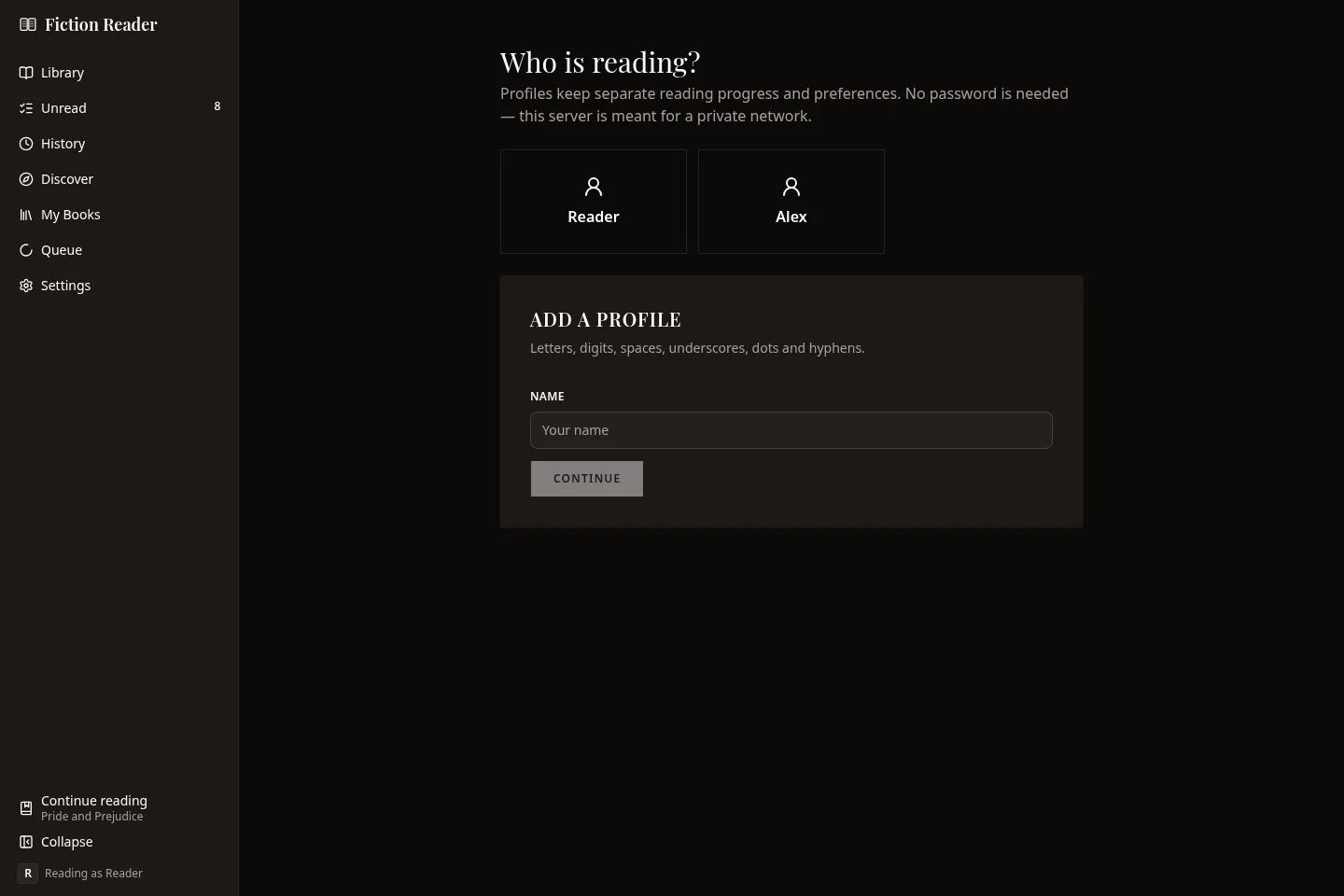
Names can contain letters, digits, spaces, underscores, dots and hyphens.
The guided tour
When you create the first profile, a short tour starts. It points at each part of the app in the order you'll use it and takes about two minutes. You can skip it at any point.
To run it again, open Settings → Help and choose Show me around again.
Whoever runs a server can turn the automatic tour off for everyone. The button in Settings still works.
Turning sites on
Six sites are supported, and you choose which ones are switched on. Open Settings → Sources.
| Site | Search | Account | Notes |
|---|---|---|---|
| Royal Road | Good | Optional | Lots of filters, plus browse lists such as Best Rated, Trending and Rising Stars. Signing in gets you adult content and your follows. |
| Archive of Our Own | Good | Optional | Filters for fandom, tags, rating, length and completion. Signing in reaches restricted works. AO3 has no cover images. |
| SpaceBattles | Sometimes refused | Optional | Browsing a forum section works even when the site's own search is refusing requests. The site runs an anti-bot check that comes and goes, and Fiction Reader waits it out. |
| Sufficient Velocity | Rate limited | Optional | Signing in reaches some subforums. |
| Questionable Questing | Needs an account | Required | Nothing on this site can be reached signed out. |
| FanFiction.net | None | Not used | Add stories by pasting a link. The site only answers a real browser, so it's slower than the others. The desktop and Android apps handle that themselves. A server needs the browser version of the image, described in Running a server. |
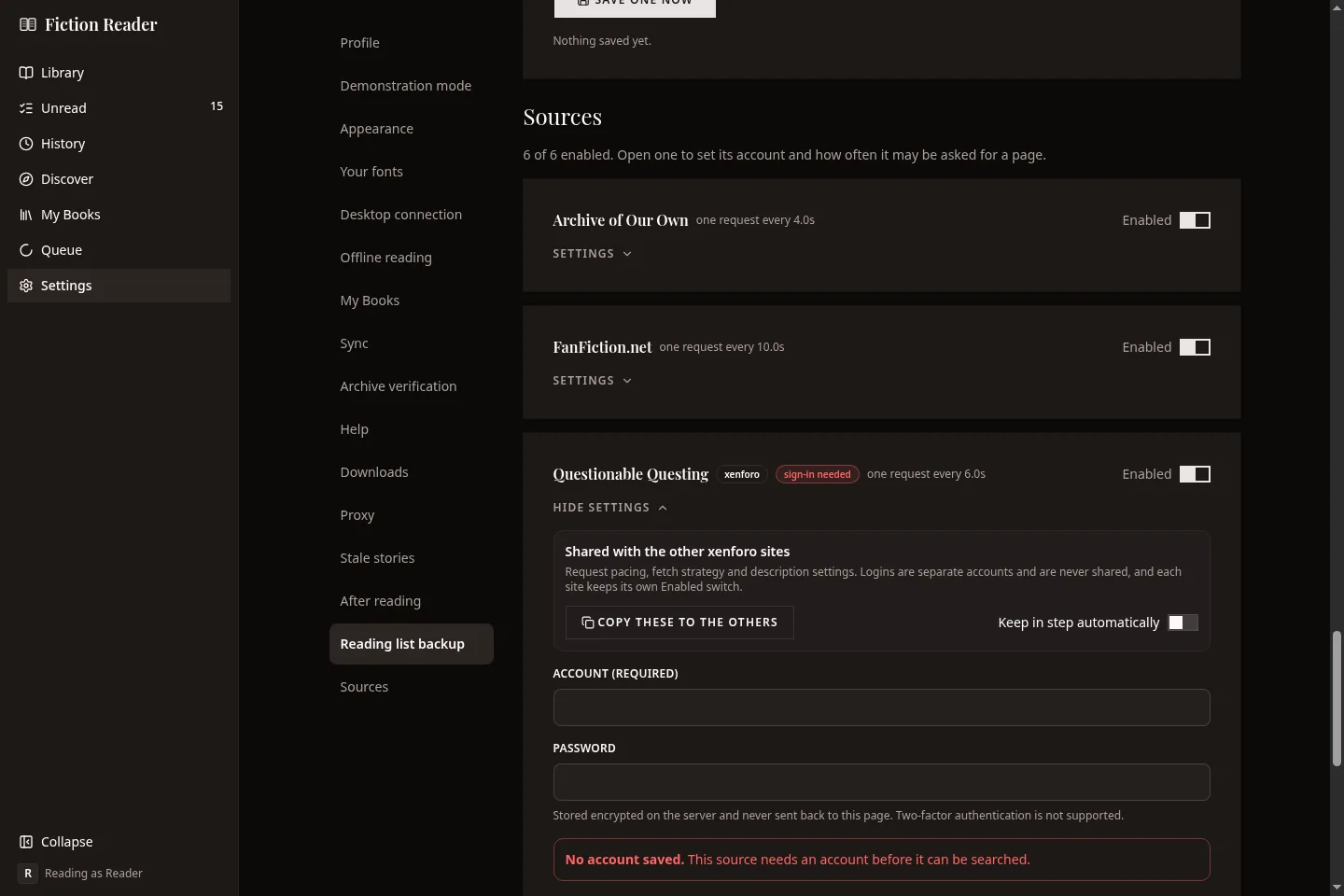
Every site shows its pacing in words, such as "one request every 4.0s". The limits are there to be polite to the sites. Why downloads take a while explains more.
The three forums run the same software, so one button copies pacing and related settings from one to the others. Accounts are never shared between them.
Signing in to a site
Only sign in with your own account, and only on sites you want Fiction Reader to use.
- Open Settings → Sources and open the site's card.
- Enter the username and password, and save them.
- Press Sign in. Saving and signing in are separate steps, so a typo in a saved password doesn't count as a failed login on your account.
The status line then says what happened: signed in, rejected, or locked after too many rejections. A locked source stops trying until you save the username and password again.
Making it look right
Settings → Appearance has three choices, and they apply to every screen.
- Light, dark or system. System follows your device.
- Colour scheme. The colour of the page, cards and borders: Warm, Zinc, Slate, Mist, Olive, Sand or Midnight.
- Base colour. The colour of buttons, links and highlights. There are nine to pick from, or you can choose your own. With a custom colour the app keeps the hue and adjusts the brightness so labels stay readable.
These follow your profile to every device. Fonts and spacing for reading are set separately, from the reading view. See Reading.
Settings → Sidebar lets you drag the sidebar entries into the order you prefer. That order is saved with your profile too.
Trying it without committing
Settings → Demonstration mode fills the app with made-up stories, books and reading progress, so you can look around a full library before you have one. Nothing you do in demonstration mode reaches the server or your real profile, and leaving it puts everything back as it was.