Turning it on
In the desktop and Android apps, My Books is already on. On a server it's off until somebody turns it on.
Open Settings → My Books and turn it on. The same card has:
- Folder. Where the files are kept. In the desktop app it's inside your library folder. On a server you can set it here, unless whoever set up the server has fixed it.
- Show My Books in the sidebar. This is per profile, so it only changes your own sidebar.
- How many books you have and how much disk space they use. Each book's text is stored separately as well as the original file, so a book takes about twice its own size.
- Look for new books, which rescans the folder now. The folder is also checked every few minutes.
What it can open
| Opens directly | Opens if Calibre is installed | Refused |
|---|---|---|
| EPUB, MOBI, AZW, AZW3, PRC, FB2, DOCX, ODT, RTF, plain text, HTML, CBZ and image-only ZIP comics. A ZIP containing one supported book is unpacked. | PDF, old-style DOC, RAR and CBR. These are converted with Calibre's ebook-convert if it's on the machine, then imported as usual. |
Anything with DRM, such as protected AZW, ACSM and KFX files. Fiction Reader says the file is protected and doesn't try to remove the protection. |
A file that can't be opened stays on the shelf with the reason, so you can see that it needs attention.
Adding books
There are two ways, and the result is the same.
- Upload. Use the button on the My Books screen, or drag files from your desktop onto the grid. They go into the folder you're looking at.
- Copy them in. Put files straight into the books folder with your file manager. The app usually notices within a few minutes, and Rescan makes it look straight away.
A book is recognised by the contents of its file. If you move or rename the file, your place, highlights and tags stay with it.
The shelf
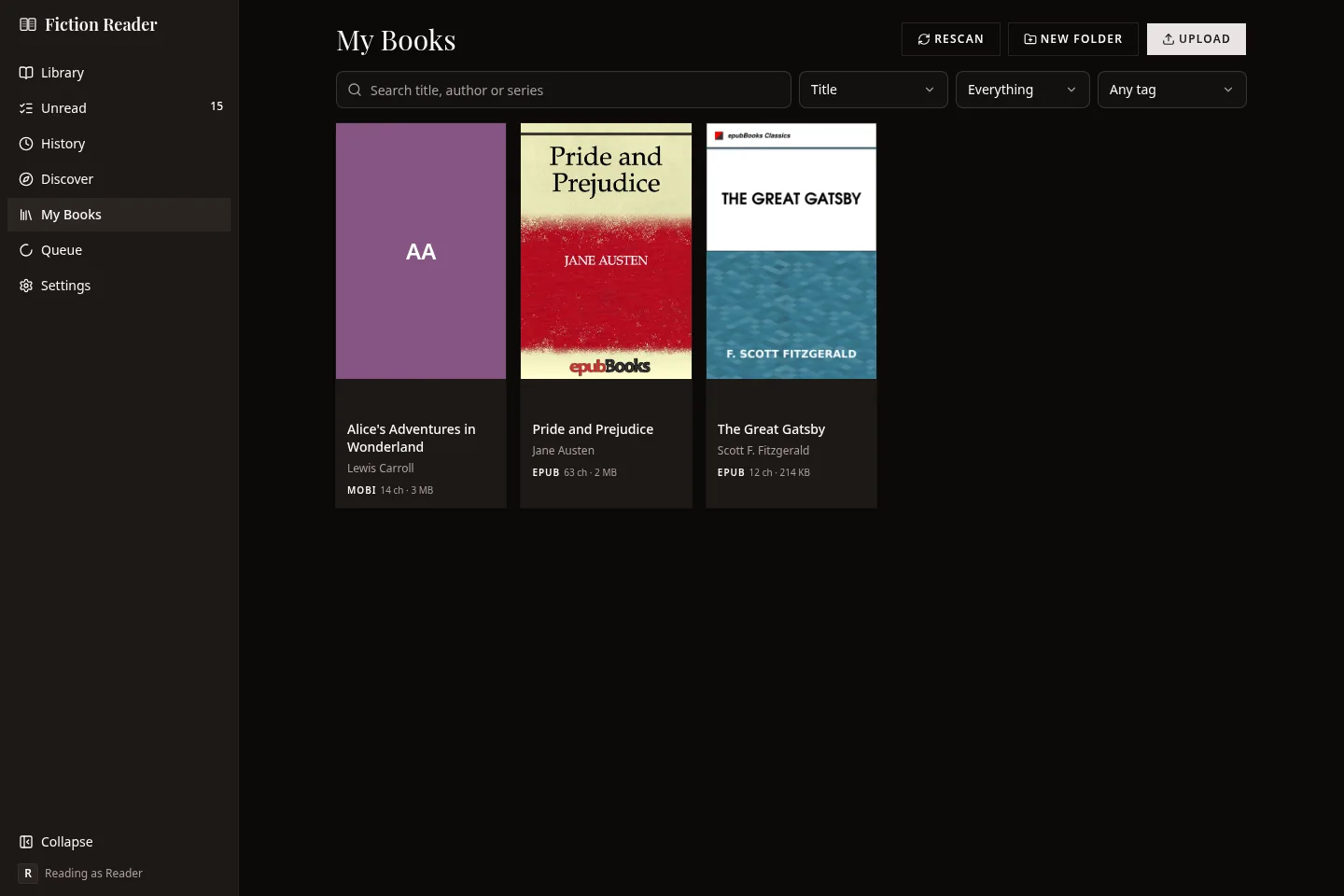
It works like the library shelf: covers, reading progress, continue reading, sorting and filtering are all the same. A few things are missing because they don't apply to a file you own. There's no download progress, no checking for updates, and no new or updated badges.
Folders
Folders here are real folders on disk. They show as tiles above the books, with a trail above them showing where you are. Show all ignores the folders and lists every book, which helps when you can't remember where you put one.
- New folder creates it straight away.
- Rename renames it on disk. No reading positions are lost.
- Move a book by dragging its card onto a folder, or by selecting one or more books and choosing Move to.
- Delete an empty folder and it's gone. If it has books in it, you're asked what to do with them. The default is to move them up to the parent folder.
When you're filtering, folders that contain matches are highlighted with a count.
Search, filters and tags
The search box looks at title, author and series. Next to it you can sort, filter by reading state (not started, reading or finished) and filter by tag.
Tags come from two places. Tags that came out of the file itself can't be edited, because Fiction Reader doesn't write to your files. Your own tags are added from the book's menu.
Reading a book
Books open in the same reading view as everything else, with the same fonts, highlights, notes and shortcuts. See Reading.
A PDF is converted to flowing text like any other book, so its original page layout isn't kept.
The option to delete a chapter's text after reading never applies to your own books.
Removing a book
- Remove moves the file into a trash folder inside your books folder and takes the book off the shelf. Your reading progress is kept while it's in the trash.
- Delete permanently is a separate step in the trash list in Settings, and it asks first.
- The trash empties itself after 30 days by default.
Restoring a book from the trash, or putting the same file back in the folder, brings it back. If you use sync, it comes back on your other devices too.
If the app can't see a file for a while, for example because a drive is unplugged, the book is marked as unavailable. Nothing is removed, here or on your other devices.
What it won't do
- It doesn't remove DRM.
- It doesn't change your files. Anything you edit is stored in Fiction Reader.
- It doesn't fetch anything from the internet for a book you imported.