Getting the controls back
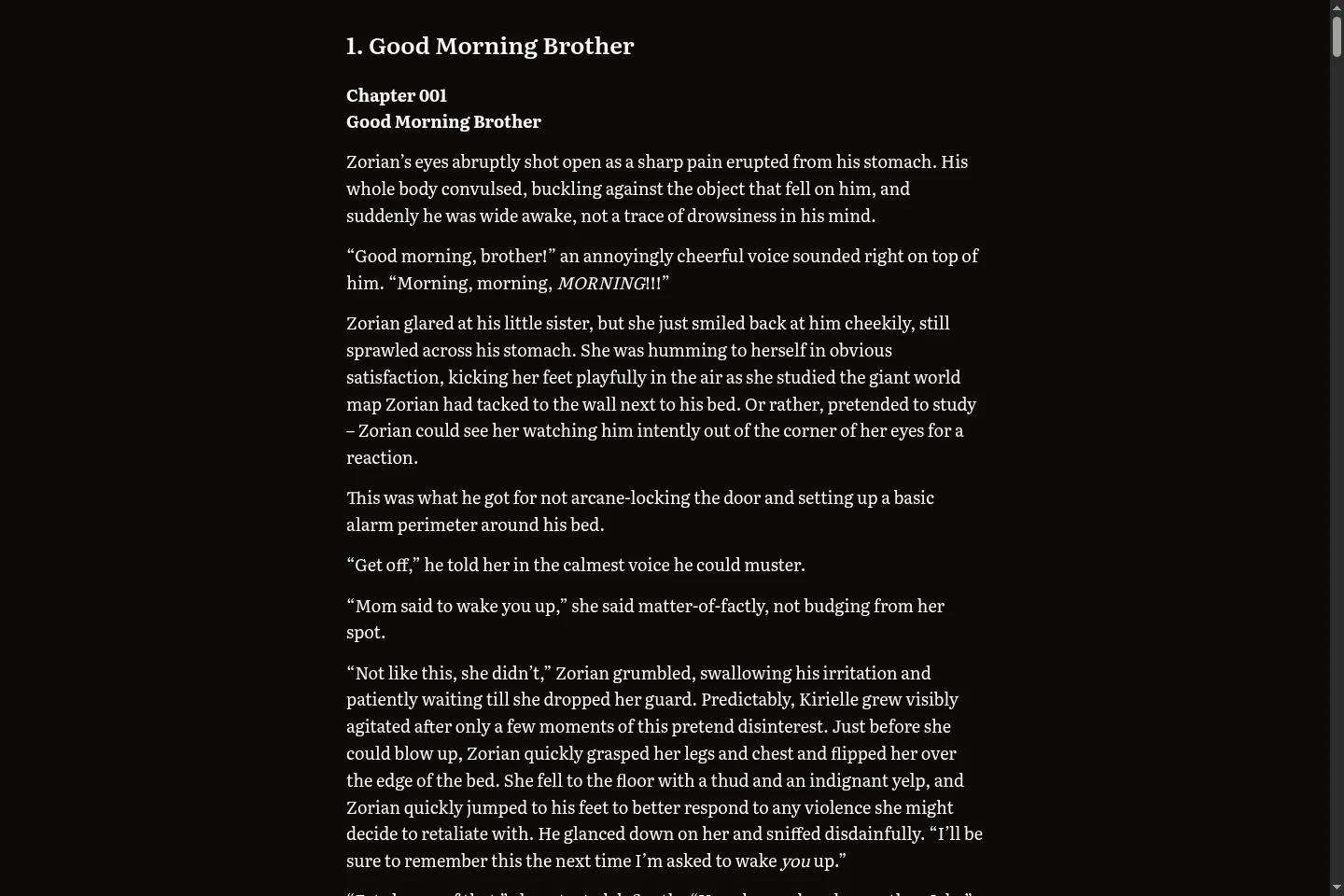
Tap or click anywhere on the page to show the controls. Tap again to hide them. They also hide themselves after a few seconds.
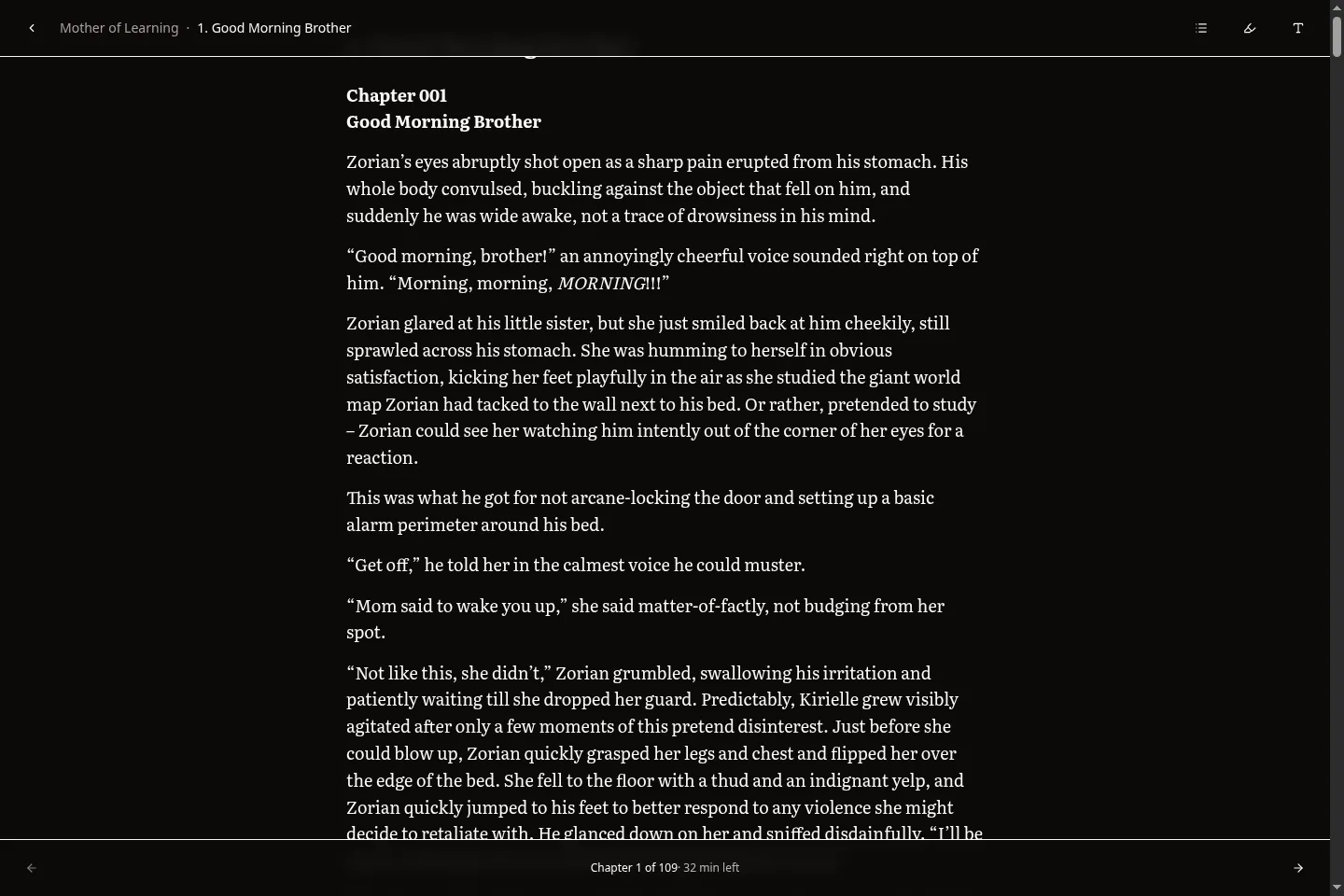
The bottom bar says where you are in the site's own words, "Chapter 1 of 109" on Royal Road or "Threadmark 12 of 123" on a forum, and how long is left in the chapter. The estimate is based on the words you have left.
A thin line along the bottom edge shows how far through the chapter you are. It stays visible when the controls are hidden.
Moving around a story
Previous and next stay in the list you're reading. In the main story, next is the next chapter. In one of the author's side lists, it's the next entry in that list.
The chapter list button, or c, opens the whole story without losing your place.
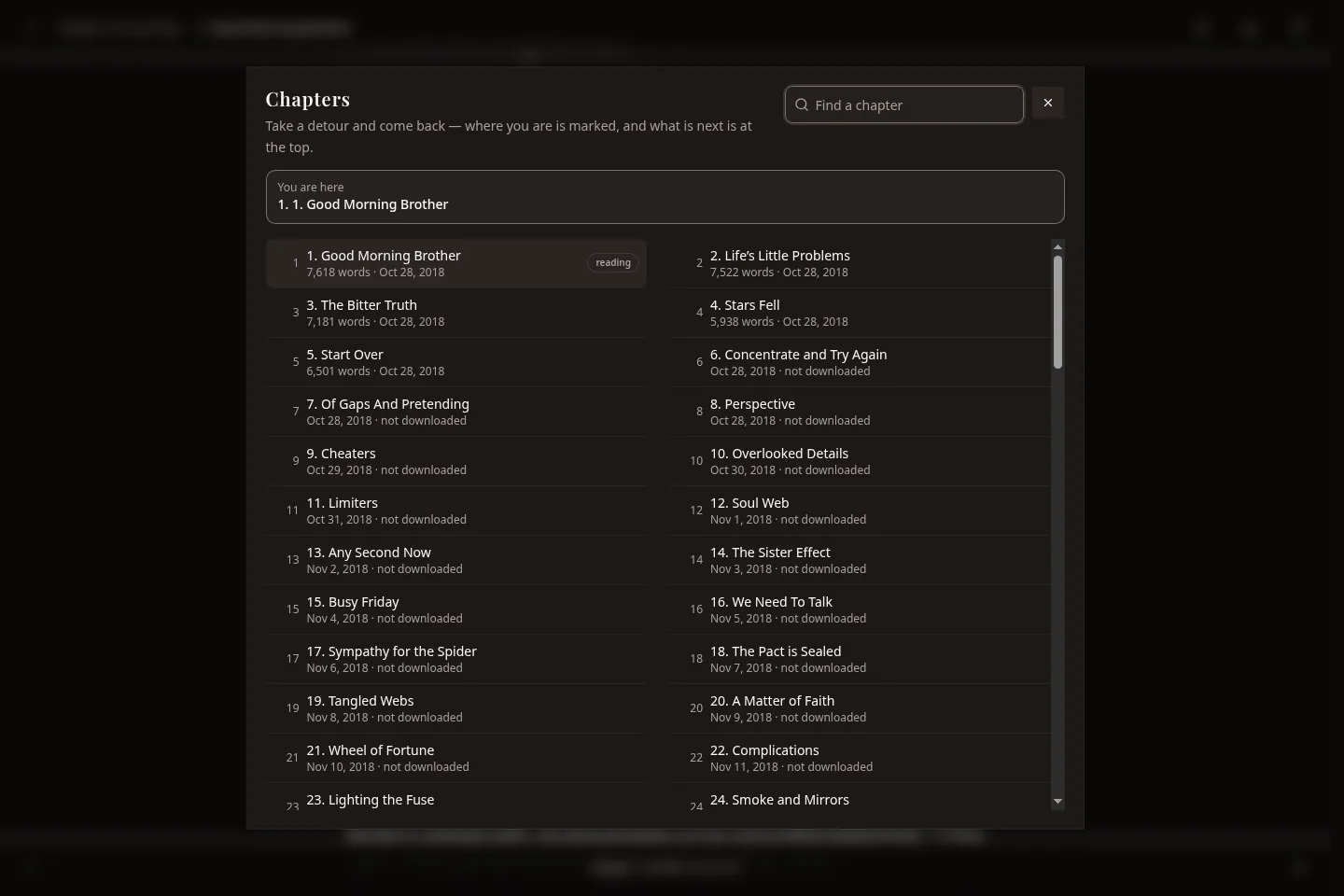
- The author's other lists, if there are any, are in a column down the left.
- A filter box appears once there are more than a dozen entries. Typing a number finds that chapter.
- Under the list, Search the text looks for a phrase inside this story's chapters.
- Rows that say not downloaded still open. The chapter is fetched when you open it.
At the end of a story the reader says you're up to date and offers the way back to the story or to your library. At the end of a trial it offers to fetch the rest.
Type, size and spacing
Press s, or the settings button in the top bar. The panel opens beside the text, and every change applies as you make it.
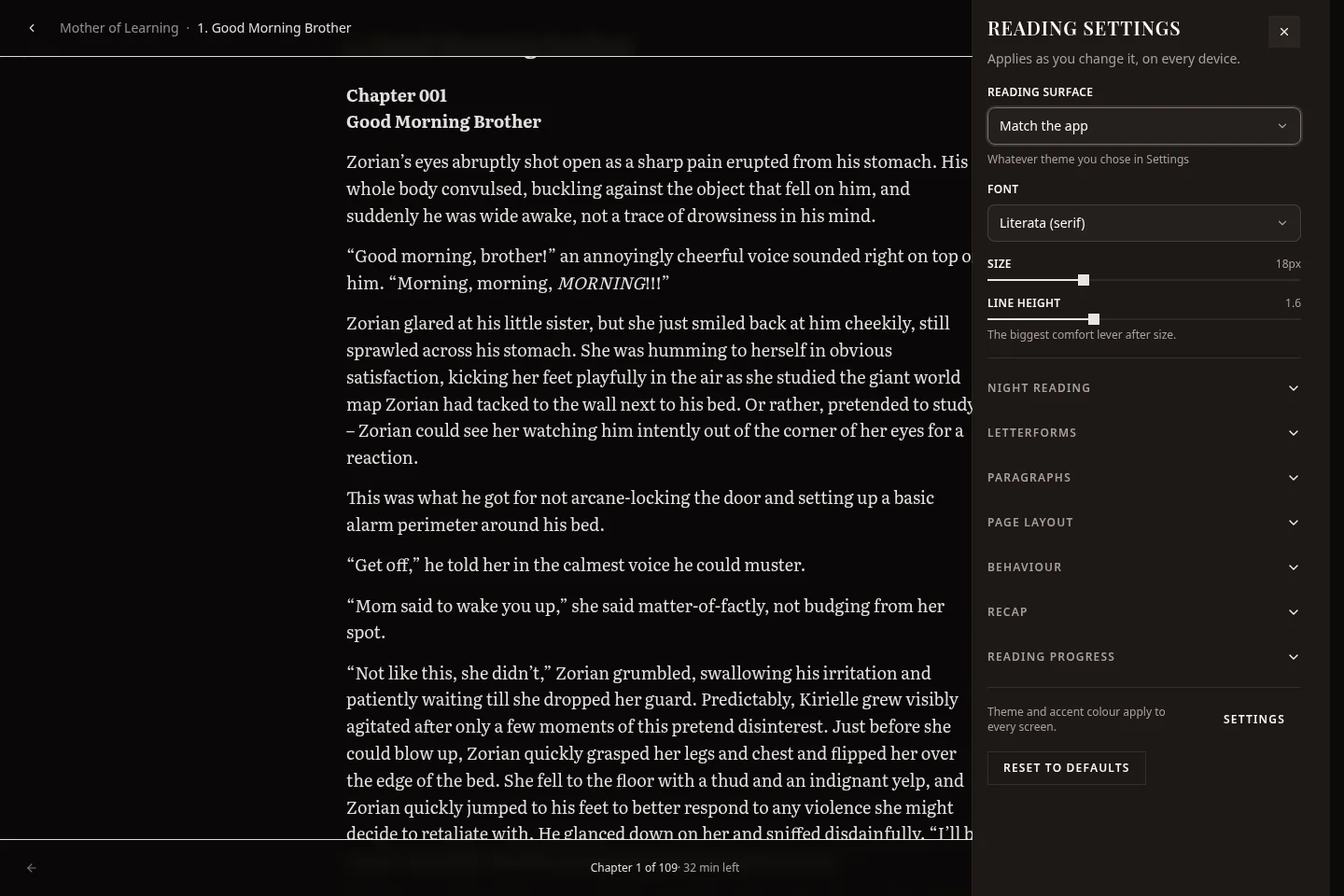
The top four are reading surface, font, size and line height. The folded sections are:
| Section | What's in it |
|---|---|
| Night reading | Warmth and dimming. |
| Letterforms | Weight, letter spacing and word spacing. A little extra letter spacing helps some dyslexic readers. |
| Paragraphs | Space between paragraphs, first-line indent, left-aligned or justified, hyphenation. |
| Page layout | Content width, side margins, top and bottom padding. |
| Behaviour | Whole-book progress, keeping the screen awake, and how far through a chapter counts as read. |
| Recap | The Previously strip. |
| Reading progress | A fixed reading speed, or one worked out from how you read. |
The fonts
There are seven, and all of them are either bundled with the app or already on your device. Nothing is loaded from a font service, so the reader works offline.
- Literata, the default. A serif designed for reading on screens.
- Georgia, a serif that's on nearly every system.
- Inter, a sans-serif.
- Atkinson Hyperlegible, designed for low vision.
- OpenDyslexic, which some dyslexic readers find easier.
- Monospace and System.
You can add your own fonts in Settings → Your fonts.
Content width is measured in characters, so the line length stays comfortable when you change the text size or switch device.
Reset to defaults at the bottom asks before it does anything.
Colour and night reading
Reading surface sets the colour of the page behind the text: match the app, Paper, Cream, Soft grey, Cool, Dim or True black. It's separate from the app's theme, which is in Settings → Appearance.
Under Night reading there are two more controls:
- Warmth adds an amber tint, which cuts down blue light.
- Dimming makes the page darker than your device's lowest brightness.
The two limit each other, so you can't combine them into a page that's too dark to read. Neither dims the controls.
Your place
Your position is saved as you scroll, and again whenever you leave a chapter, close the window or switch away from the app. Continue reading in the sidebar, on the shelf and on the story screen takes you back to the same spot.
If you were reading with no connection, your position is kept on the device and sent when the library can be reached again. See Reading offline.
When a chapter counts as read
A chapter is marked read when you get most of the way through it. The default is 90%, so scrolling past a chapter to look something up doesn't mark it.
A chapter short enough to fit on one screen has nothing to scroll, so it counts as read after about a second on screen.
Settings → After reading can delete a chapter's downloaded text once you finish it, either automatically or after asking. The chapter stays in the list and stays marked read, and you can download it again. This never applies to your own books.
Highlights and notes
Select some text and a small toolbar appears.
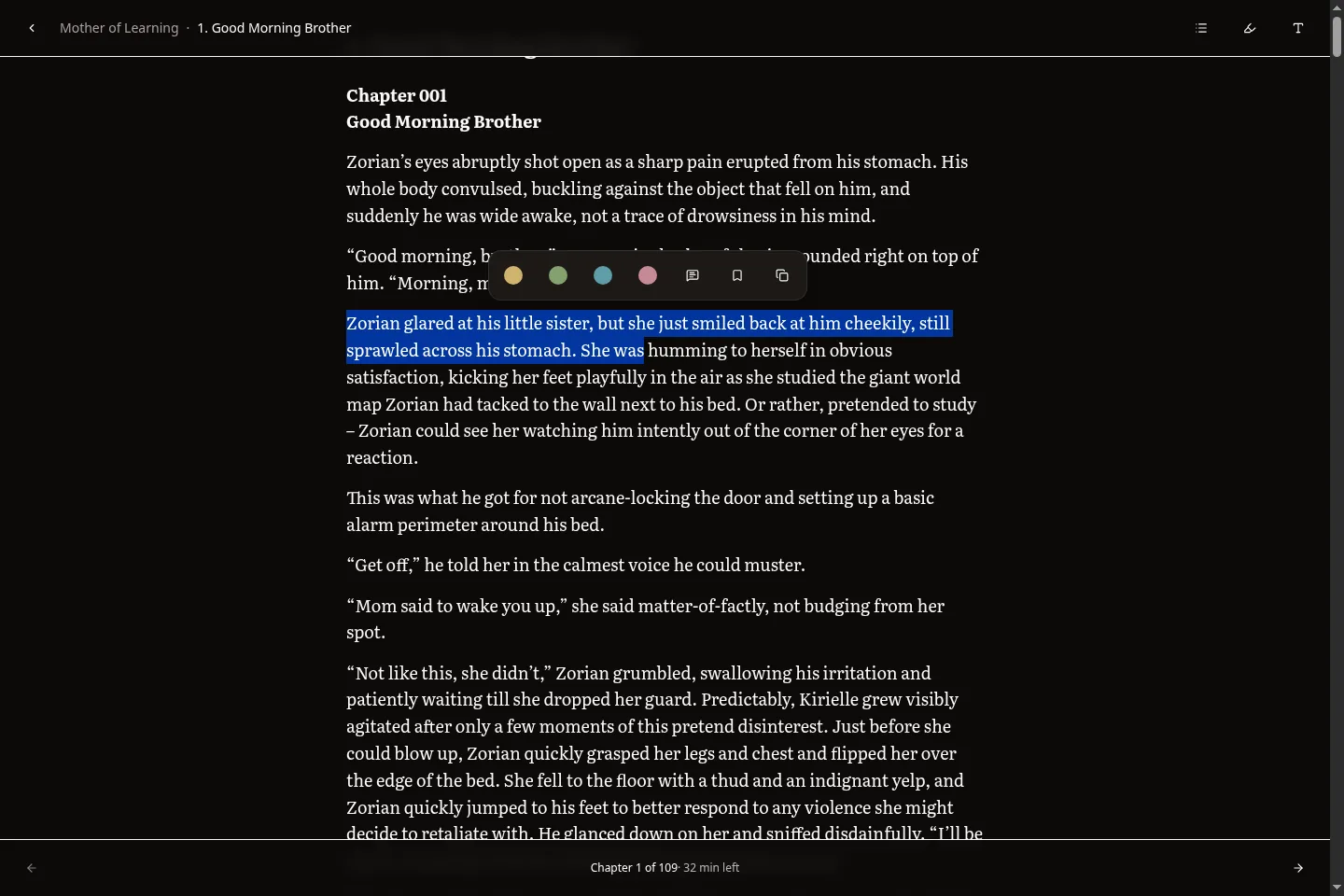
- A colour makes a highlight.
- Note attaches something you write to the passage.
- Bookmark marks the passage without a colour.
- Copy copies it.
Highlights are painted into the text. A passage with a note has a dashed underline, and a bookmark has a dotted one. Click a mark to see the note, change the colour or delete it.
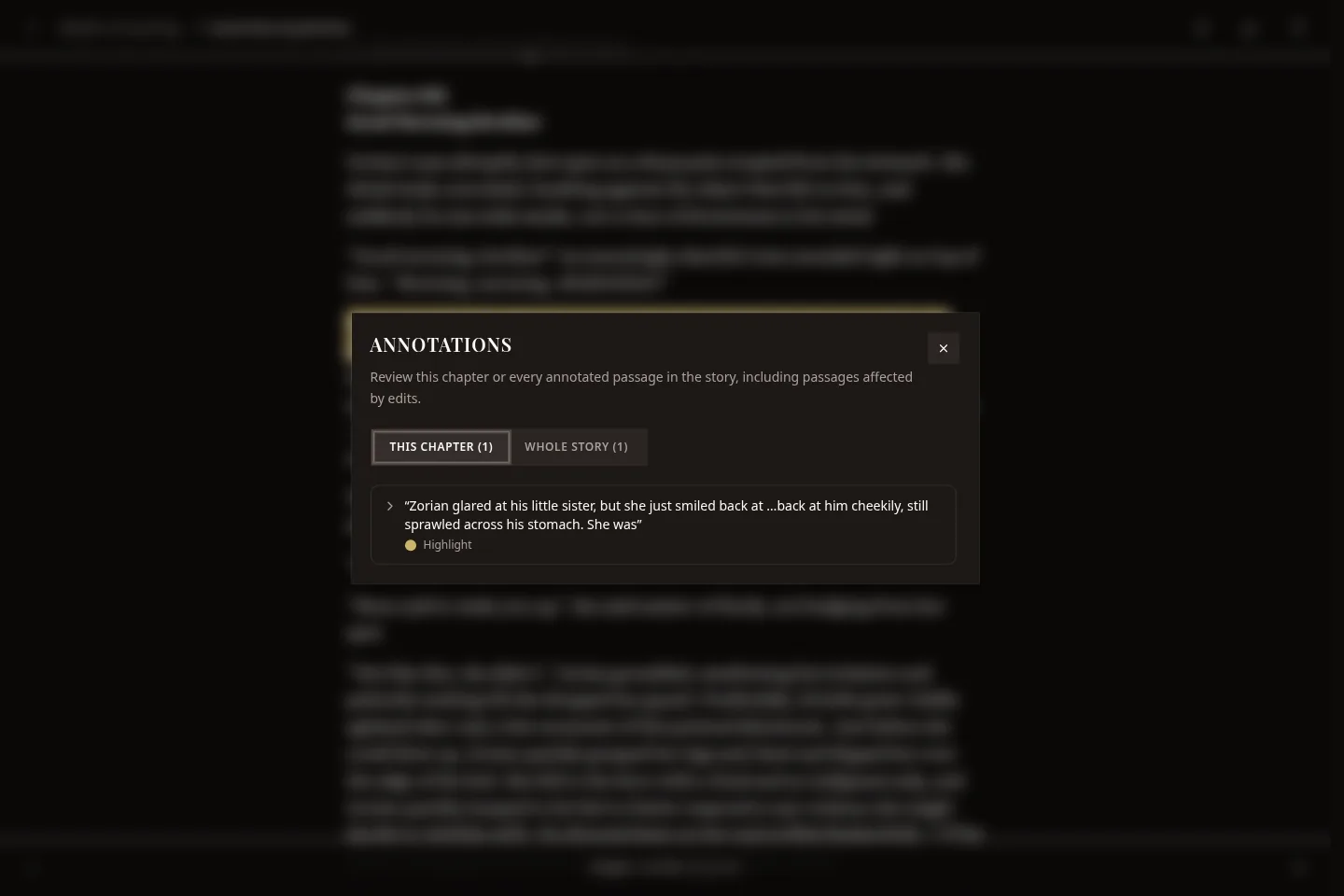
Authors edit chapters, so a marked passage can move or change. When a chapter opens, Fiction Reader finds each passage again by its text. If the passage has moved or been partly rewritten, the mark is labelled to say so. If the passage is gone, the mark stays in the list, labelled as having lost its place.
On a phone, long-press to select text as usual. The toolbar appears once you've made a selection.
Every mark you've made is also collected in the notebook, and you can export them.
Chapters that were edited
When an author edits a chapter, Fiction Reader downloads the new text and keeps the old one.
A chapter with more than one version has an extra button in the top bar. Press it, or v, to see the versions and compare any two. Added text is underlined and removed text is struck through. Long stretches that didn't change are folded.
There are two layouts. Inline shows what changed in the flow of the text, and side by side puts the old and new paragraphs next to each other.
The Previously strip
When you come back to a story after a break, a Previously strip above the chapter title shows the end of the previous chapter. It opens by itself if you read that chapter at least a week ago, and the Previously button in the top bar shows or hides it at any time.
Under Recap in the reading settings you can turn it off, change how long a gap triggers it, and set how much it shows.
When a chapter can't be shown
| Situation | What you see |
|---|---|
| Not downloaded yet | The app fetches it and tells you it's on the way. |
| Removed from the site | A banner with the date it was removed, and your saved copy of the text. |
| Past the end of a trial | An explanation and an offer to download the rest of the story. |
| The site refused it | The reason, such as an early-access chapter or a moderated post. |
| A picture didn't load | Try again, which asks the server to fetch that image again. |
| Offline, and not saved on this device | A message saying the chapter isn't on this device. |
In the desktop and Android apps, a small Offline label appears in the top corner of the reading view while the library can't be reached. What you read is saved and sent when you're back.
Keyboard and gestures
| ← → | Previous and next chapter |
| s | Reading settings |
| c | Chapter list |
| h | Highlights and notes |
| v | Versions, when a chapter has more than one |
| + − | Text size |
| Esc | Close whatever is open, or go back to the story |
| Tab | The first stop is a Show reading controls button, so you can reach the controls without a mouse |
These are single keys. With Ctrl, Shift or Alt held down they do what they normally do, so Ctrl+C still copies.
Right-clicking the page gives a menu for whatever is under the pointer, along with the chapter list, annotations, versions, reading settings and a link to the chapter. Each item shows its shortcut key.