
The reading queue
Unread in the sidebar lists every unread chapter across your library, grouped by story. On thirty stories it's quicker than looking at the shelf.
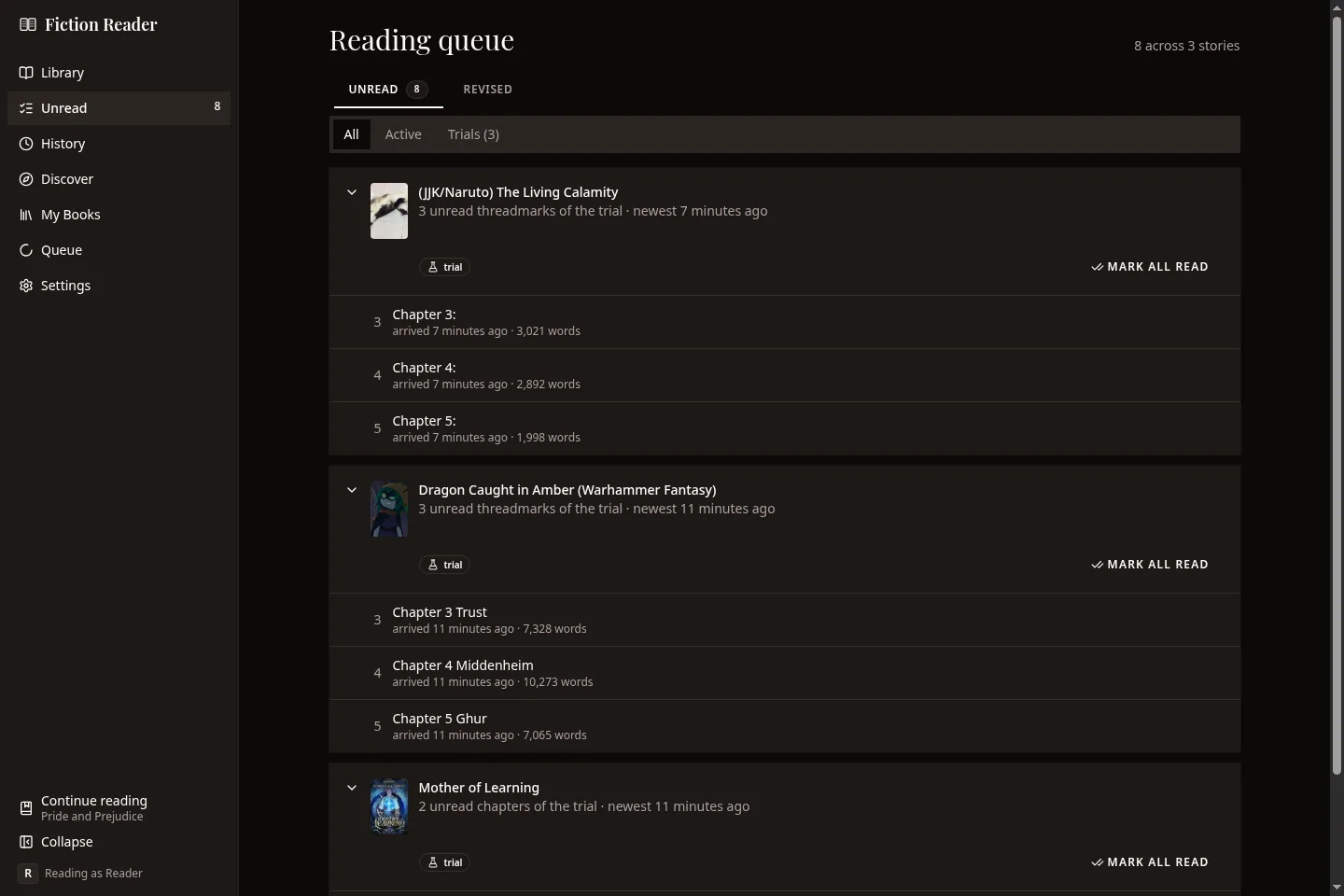
Chapters leave the list as you read them, and each group has Mark all read. The tabs at the top narrow the list to active stories, trials or archived ones.
The author's extra threadmark lists never appear here.
The Revised tab
Revised lists chapters that were edited at the source after you read them. Opening one takes you straight to a comparison of the version you read and the current one. Mark as seen dismisses an edit without adding a re-read to your history.
The inbox
The inbox is a log of what happened while you weren't looking: new chapters, edited chapters, stories that have stopped updating or started again, and problems found in the archive.
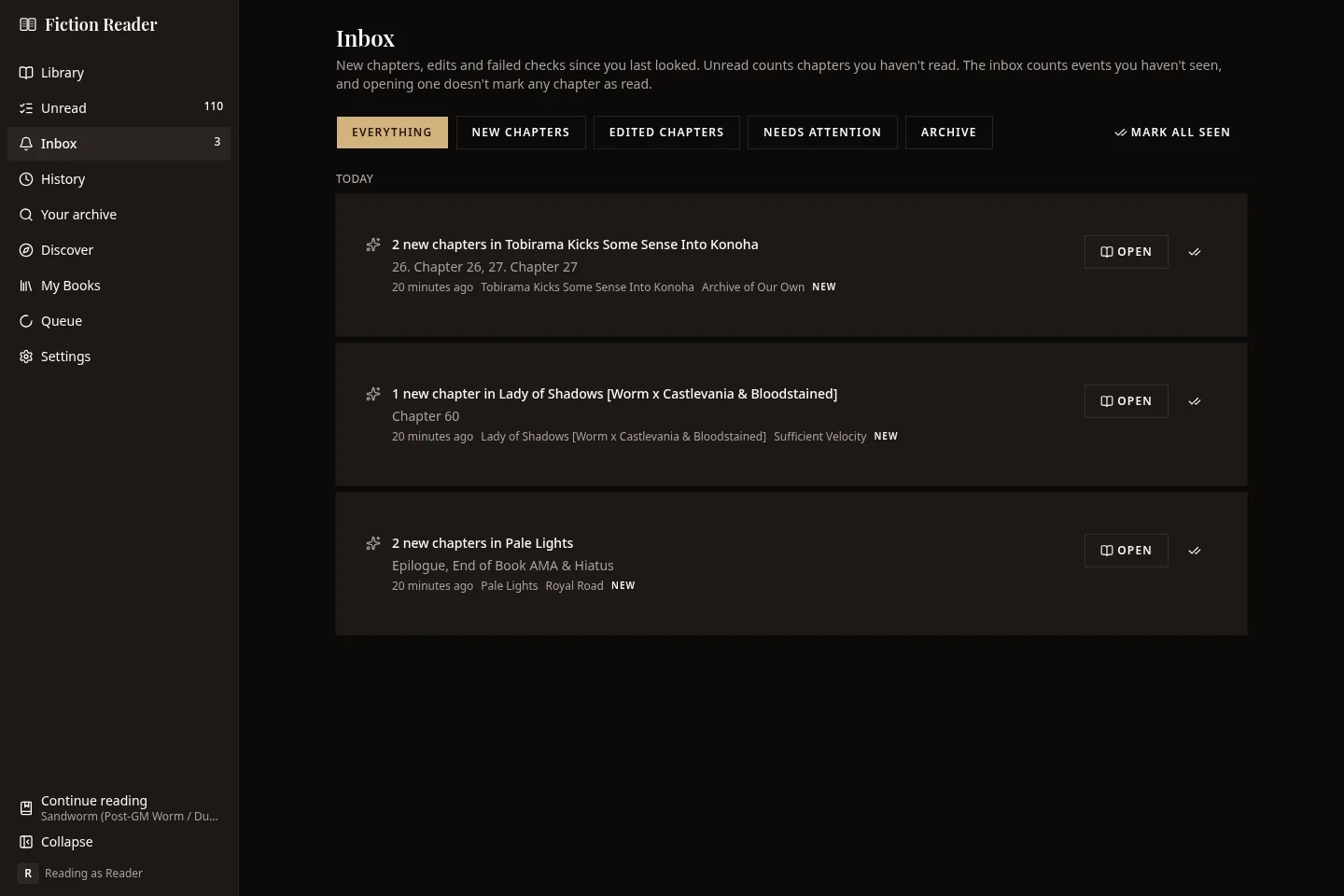
The sidebar shows two numbers and they count different things. Unread counts chapters you haven't read. Inbox counts events you haven't seen. Opening an event doesn't mark its chapters as read.
- The buttons along the top filter by kind of event.
- Open goes to the story. An entry about a story that has stopped updating has Try again, which checks it there and then.
- The tick on each entry marks it as seen, and Mark all seen clears the lot.
"Chapters were edited" appears only when a chapter's text has really changed. The inbox is kept by the library, so it needs a connection to your server.
Notifications
The inbox records everything whether or not you're told about it. If you'd like to be told, there are three ways, and you can use any of them.
Webhooks
A server can send a message to a notification service when it finds something. It works with ntfy, Gotify and Discord webhooks, or it can send plain JSON to an address of your choice. Set it up in Settings → Notifications.
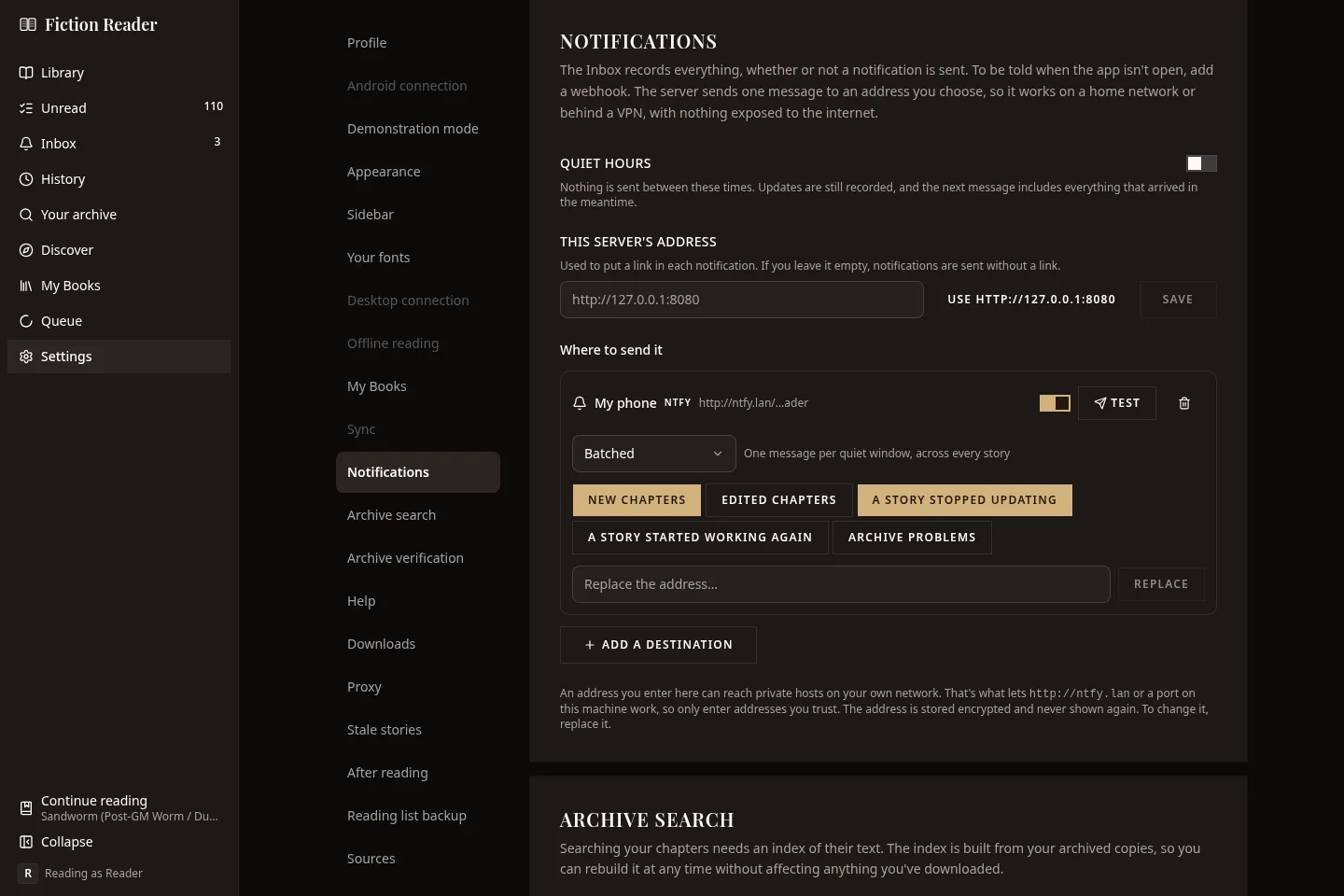
- Press Add a destination. Give it a name, choose the service and paste its address. For ntfy that's your topic URL.
- Choose how often it sends: Immediate for a message per check that found something, Batched to group them, or Daily.
- Choose which events it hears about.
- Press Test to make sure a message arrives.
The address is stored encrypted and isn't shown again. To change it, replace it. It can point at a machine on your own network, such as http://ntfy.lan, so nothing has to be exposed to the internet.
Quiet hours hold messages back between two times. Anything that happens then is included in the next message.
If you fill in This server's address, each notification includes a link back to the story.
Desktop notifications
The desktop app can show a notification from your operating system. Turn on Desktop notifications in the same card. They only appear while the app is open.
On Android
When the Android app keeps its own library, it uses the phone's notifications. There are no webhooks to set up.
Per story
Each story has a Tell me about this one switch on its screen. Turn it off for stories you don't want to hear about. Their updates still show in the inbox.
The download queue
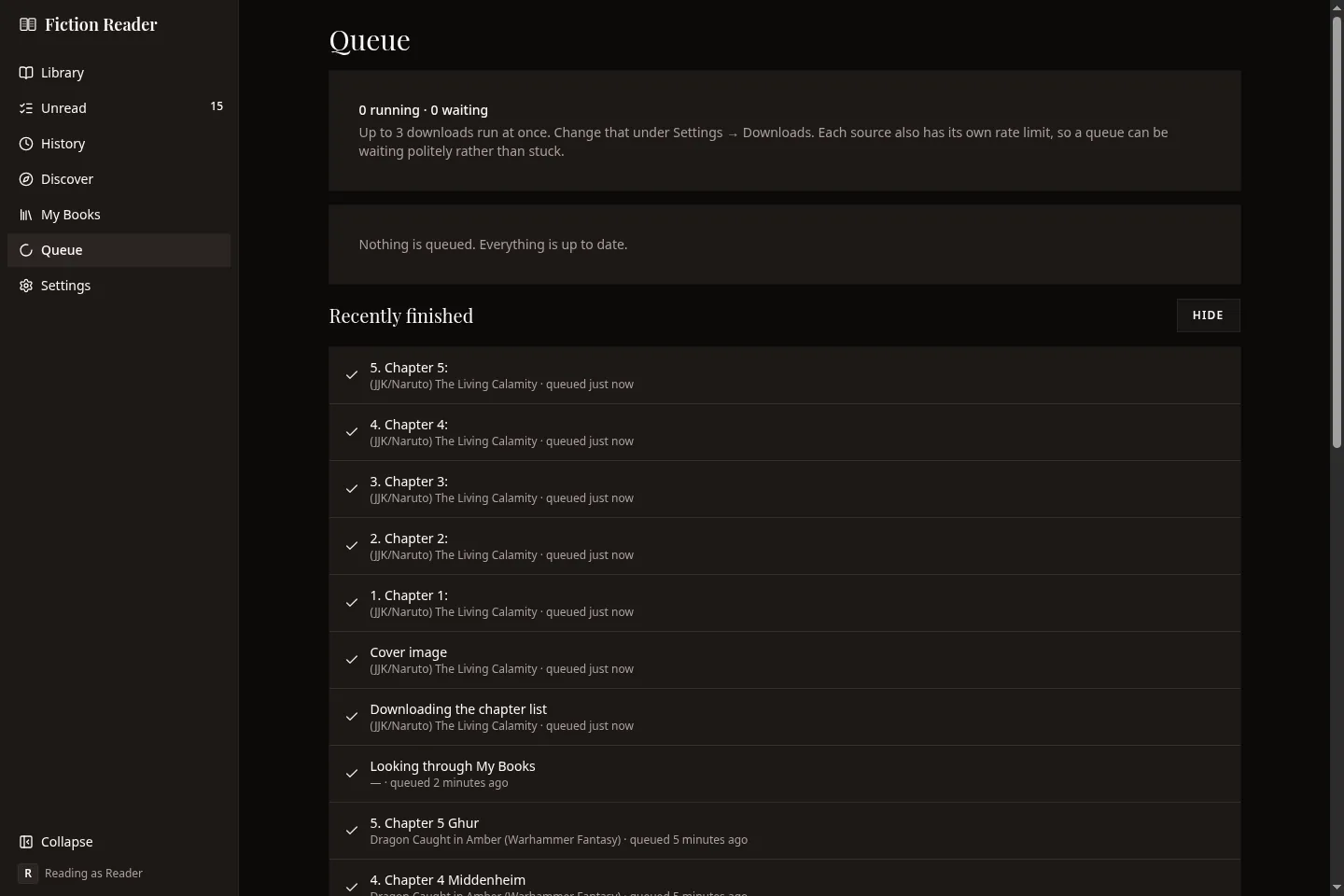
The line at the top says how many downloads run at once. You can change that in Settings → Downloads. Each site also has its own pacing, so a queue that's waiting usually isn't stuck.
The queue covers more than chapters. Fetching a chapter list, fetching a cover, checking a story for updates, indexing chapters for search and scanning your books folder all go through it.
A waiting job sometimes carries a reason in red. "The site asked to check that a person is reading" means the site put up an anti-bot check, and Fiction Reader will try again later by itself. You can cancel a waiting job, and retry one that failed.
Reading history
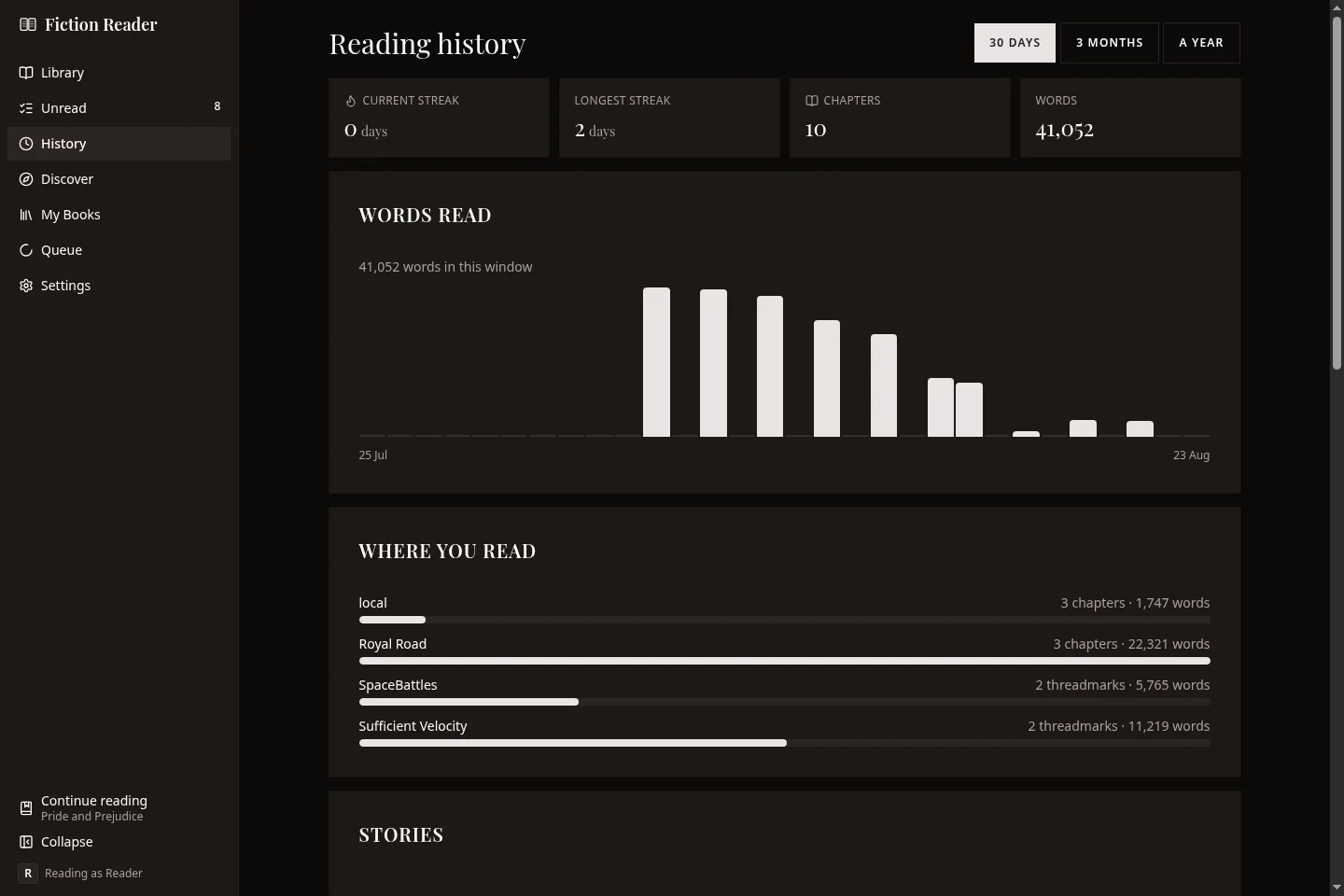
History records what you read and when. The buttons at the top choose how far back to look: 30 days, 3 months or a year.
The table of stories is sorted by when you last read each one, which is a good way to spot a story you stopped reading without meaning to. Below it is a timeline of individual chapters.
Reading a chapter twice makes two entries. Marking a chapter unread afterwards doesn't remove the entry.
A reading goal
Set a reading goal adds a progress bar to this screen. Choose what to count (words, chapters or days with reading), a target, and whether it runs weekly or monthly. The goal only shows here, and removing it doesn't delete any history.