Searching what you've downloaded
Your archive in the sidebar searches the text you already have. Discover looks for new stories on the sites. This looks inside the chapters, titles and notes in your own library.
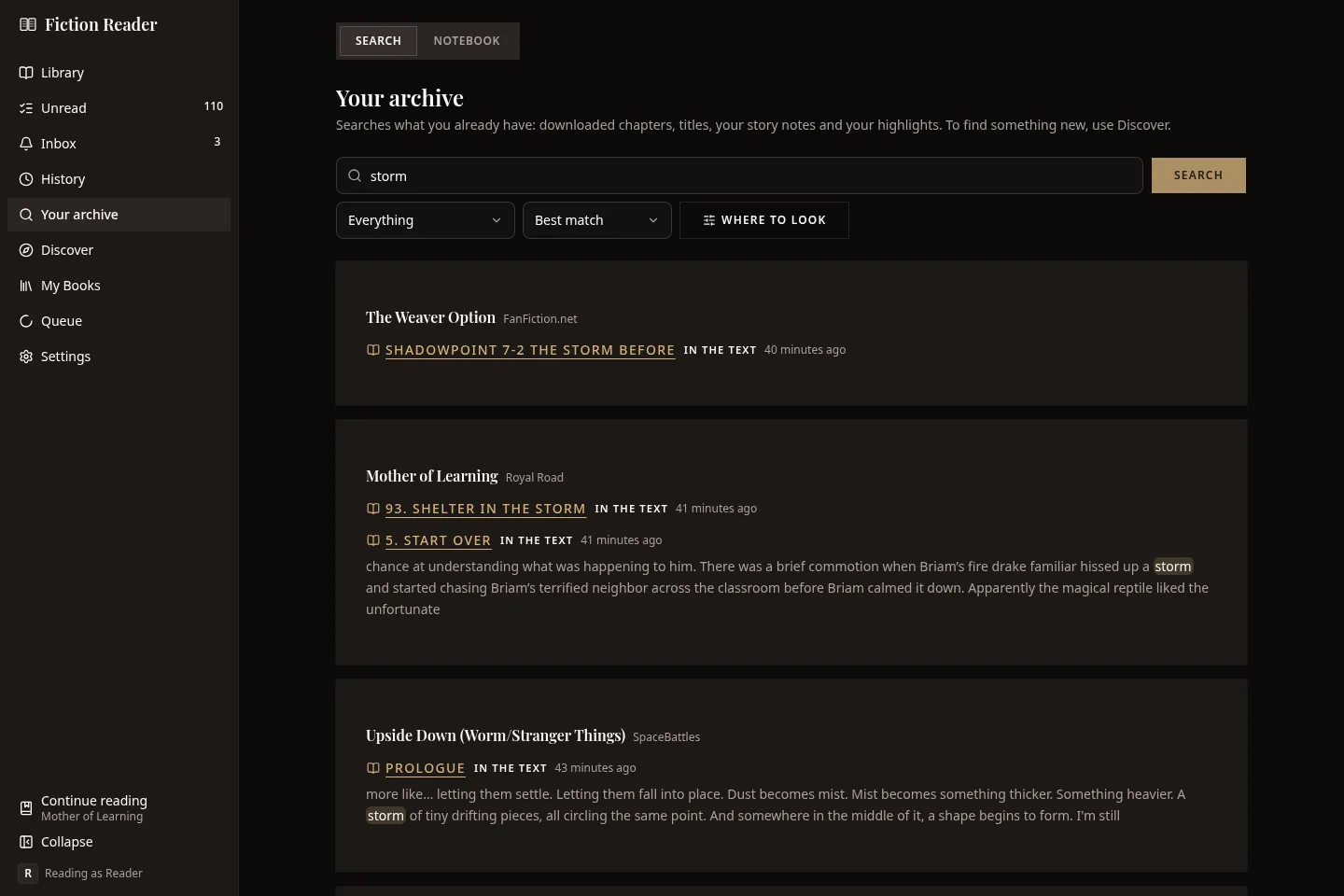
Type a phrase you remember and press Search. It doesn't search as you type.
Two controls under the box shape the search:
- What to search: everything, chapter text, titles and authors, story notes, or your highlights and notes.
- Order: best match or most recent.
Each result has a badge saying why it matched: in the text, in a title, in your note or in your highlight. Chapters that were later removed from the site are searched too, since your copy is still here.
The search, the options and the tab are all in the address bar, so the back button returns you to your results and you can bookmark a search.
Narrowing where it looks
On a big library, "the chapter where they reach the capital" isn't much use across four hundred stories. Where to look opens a panel that limits the search to one story, one collection, one of your tags, or one source.
Whatever you choose shows as a chip under the search box. Remove the chip to search everything again.
You can also search inside a single story from the reading view. Open the chapter list and use Search the text at the bottom.
When the results look wrong
- "Every word in that search is too common to index." Words like "the" and "and" aren't indexed. Try a name, a place or a less common phrase.
- "There were more matches than can be shown." Narrow the search to see the rest.
- "Chapters are still being indexed." New chapters are indexed in the background after they download. Results are incomplete until that finishes.
The index is built from your downloaded chapters. Settings → Archive search shows how many chapters are indexed and has a Rebuild the index button. Rebuilding doesn't touch the chapters themselves.
Search needs a server or the desktop app. The Android app doesn't have it when it's using its own library.
The notebook
The Notebook tab lists every highlight, note and bookmark you've made, across all your stories.
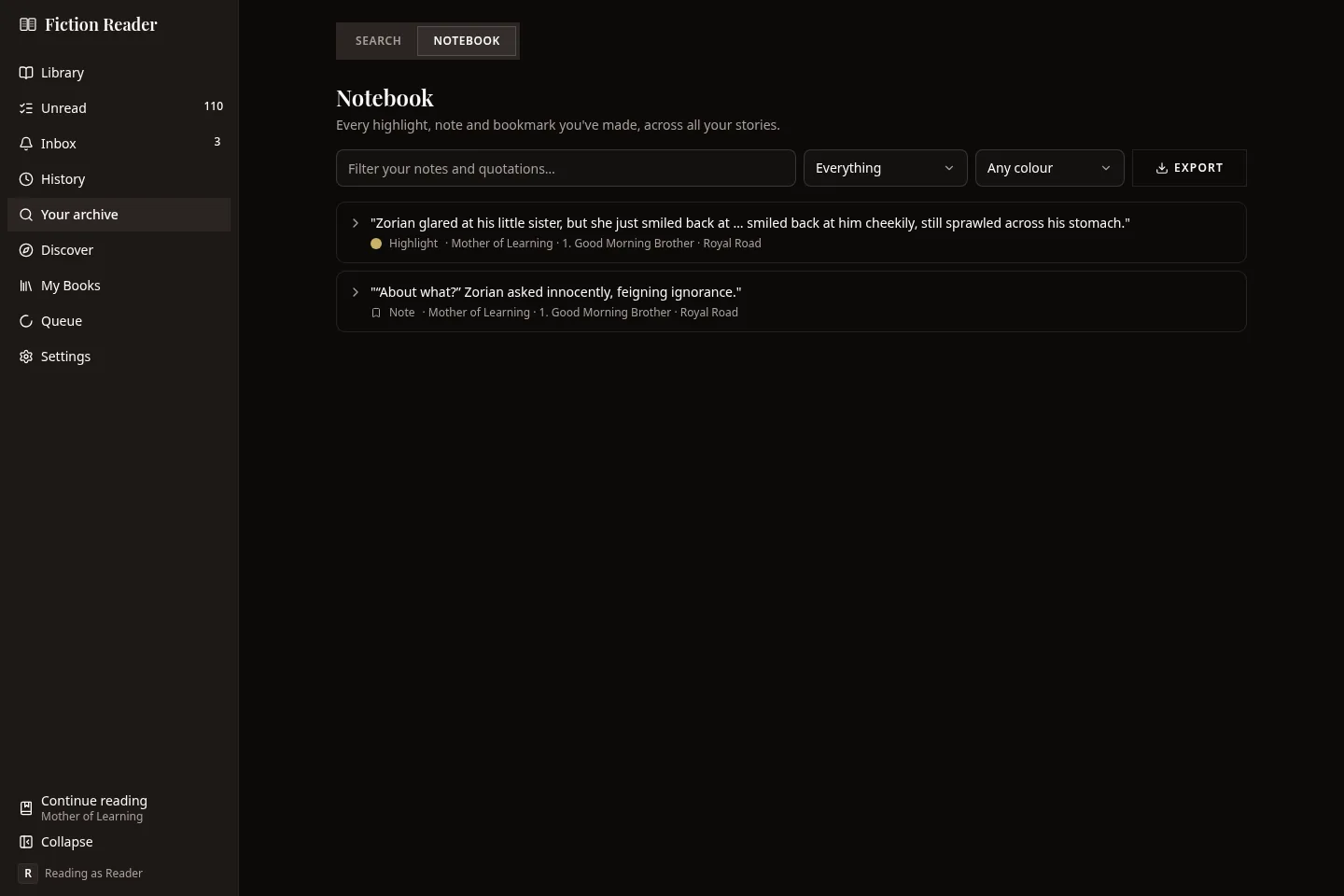
You can filter it by text, by kind (everything, with a note, or highlights only) and by colour. Each entry opens the chapter at that passage, and you can edit the note or delete the mark from here.
If an author rewrites a passage you highlighted, the mark may no longer have anything to attach to. Those are labelled Lost its place, and a filter for them appears when you have any.
Exporting
Export saves the entries currently shown, as Markdown to read or JSON for another program. It's a copy for you to keep. The app can't import it again, so it isn't a backup.